> ## Documentation Index
> Fetch the complete documentation index at: https://dripart-dev-api-v1.mintlify.site/llms.txt
> Use this file to discover all available pages before exploring further.
# Custom nodes (new UI)
> Install, update, and manage custom nodes with ComfyUI-Manager using the new interface
If you're not using the new UI, refer to the [Switch between new and legacy UI](/manager/install) section to learn how to switch.
## New UI overview
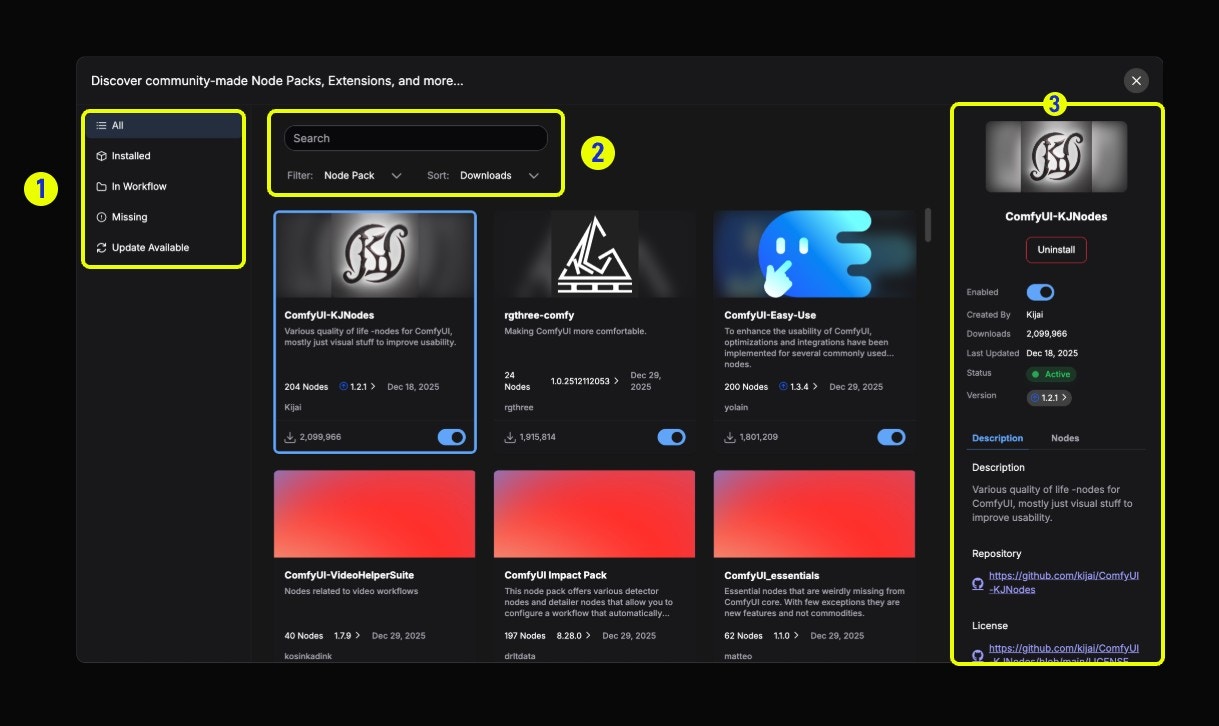 1. **Left sidebar (Filters)**: Filter installed nodes, nodes in workflow, missing nodes, updatable nodes, etc.
2. **Top search bar**: Search node packs (Node Pack) or individual nodes (Node), switch search type using the Filter dropdown
3. **Right detail panel**: Click a node to display detailed information including description, enable status, version information, etc. The Description tab contains repository information, and the Nodes tab previews all nodes
## Node management
Learn how to use the new ComfyUI Manager to manage custom nodes
### Search nodes
1. **Left sidebar (Filters)**: Filter installed nodes, nodes in workflow, missing nodes, updatable nodes, etc.
2. **Top search bar**: Search node packs (Node Pack) or individual nodes (Node), switch search type using the Filter dropdown
3. **Right detail panel**: Click a node to display detailed information including description, enable status, version information, etc. The Description tab contains repository information, and the Nodes tab previews all nodes
## Node management
Learn how to use the new ComfyUI Manager to manage custom nodes
### Search nodes
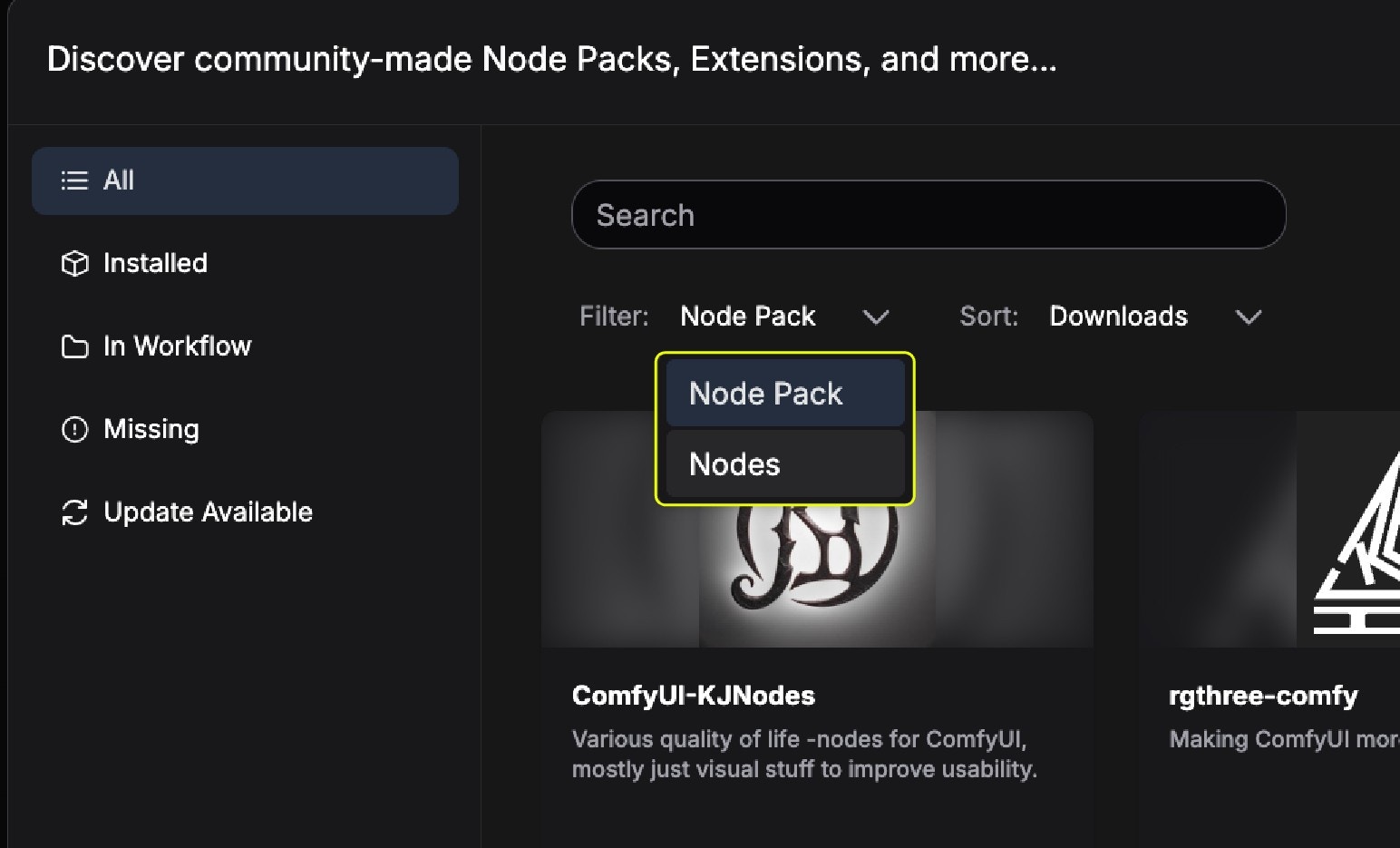 The Manager supports searching for node packs and individual nodes separately. As shown above, you can switch search types by toggling the filter.
* Node Pack: A complete custom node pack
* Individual Node: Search for individual nodes within node packs
### Install nodes
The Manager supports searching for node packs and individual nodes separately. As shown above, you can switch search types by toggling the filter.
* Node Pack: A complete custom node pack
* Individual Node: Search for individual nodes within node packs
### Install nodes
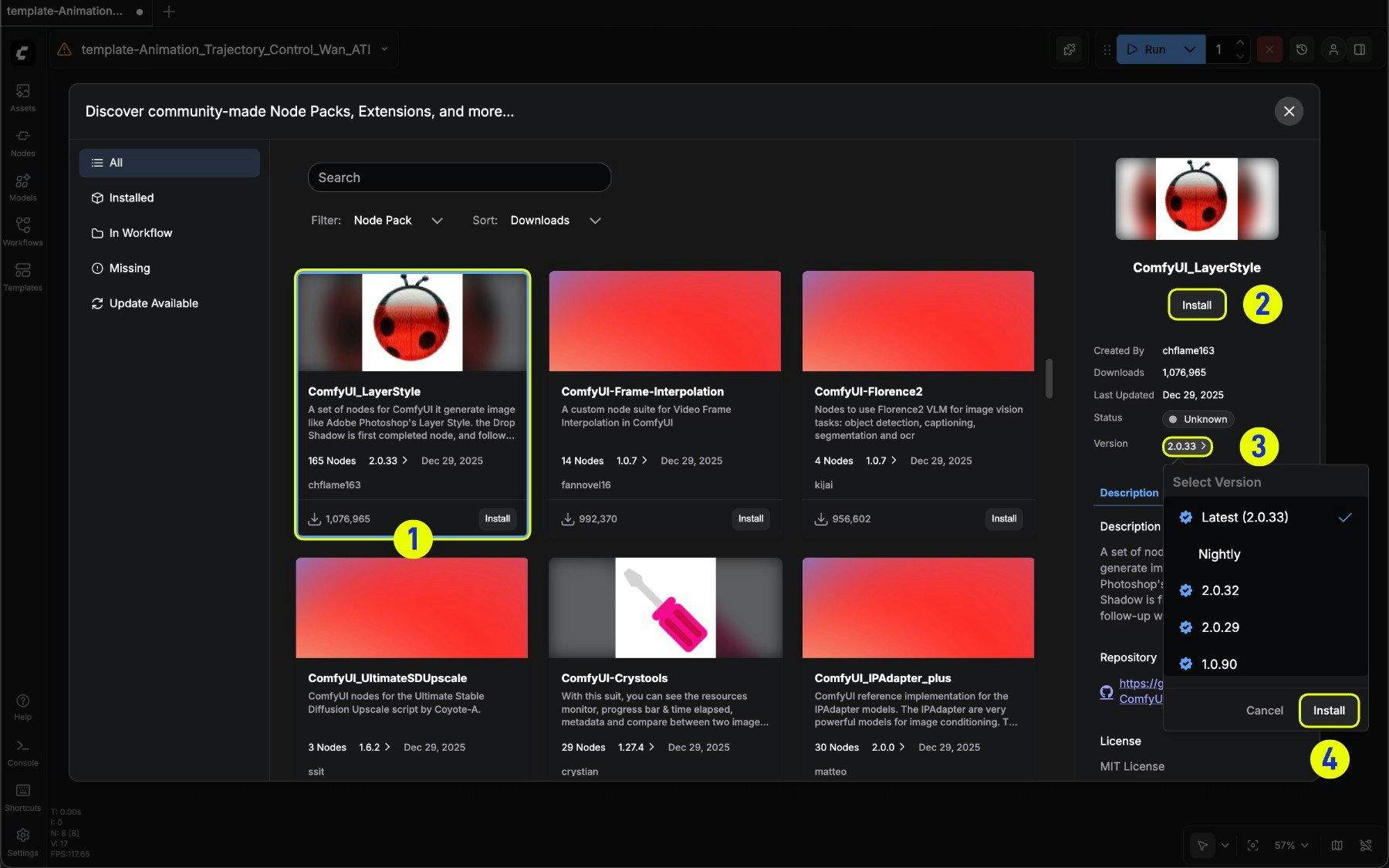 1. Select the corresponding node card
2. Click **Install** in the expanded node information
3. Or select a specific version in **Version** to install
### Update nodes
Under the **Update available** filter, you can filter nodes that have updates available in the current node list
1. Select the corresponding node card
2. Click **Install** in the expanded node information
3. Or select a specific version in **Version** to install
### Update nodes
Under the **Update available** filter, you can filter nodes that have updates available in the current node list
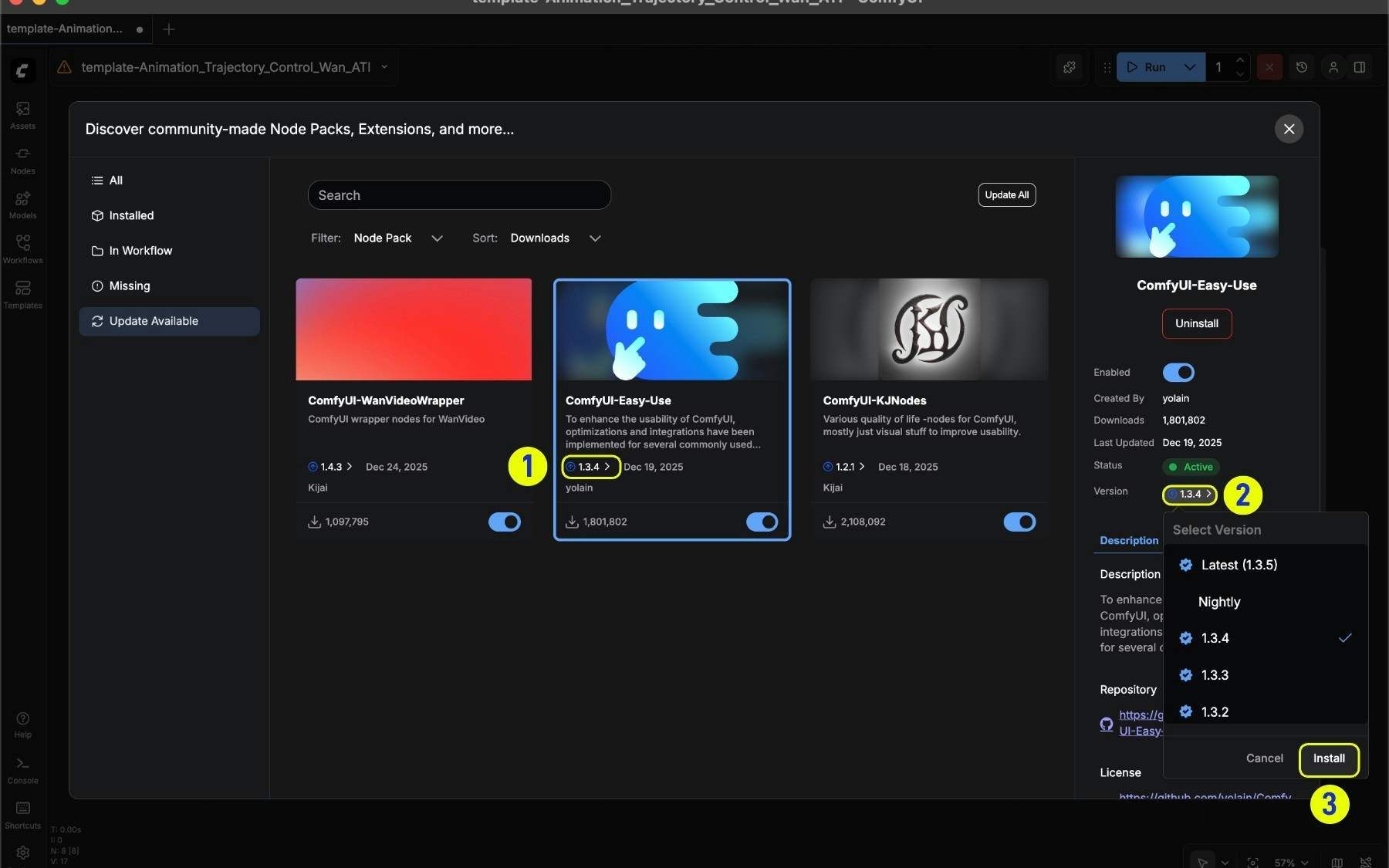 1. Updatable nodes will display an update arrow indicator
2. Select a specific version in **Version**
3. Click the **Update** button after selecting a version to update
### Find missing nodes
1. Updatable nodes will display an update arrow indicator
2. Select a specific version in **Version**
3. Click the **Update** button after selecting a version to update
### Find missing nodes
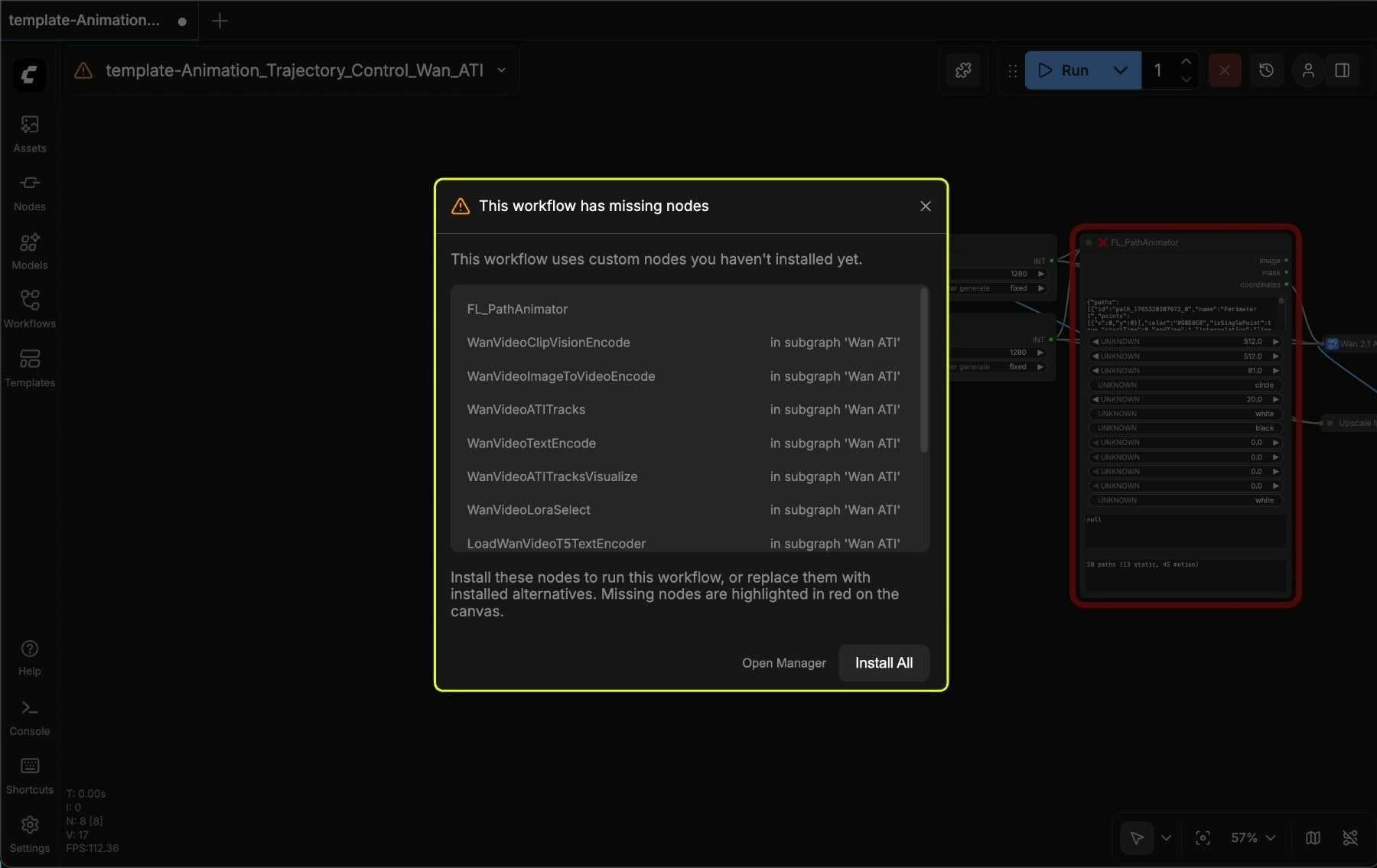 If your ComfyUI Manager is properly installed, a prompt will appear when loading a workflow with missing nodes
1. You can choose **Install All** to install all nodes at once
2. Or choose **Open Manager** to open the manager and browse details before installing
If your ComfyUI Manager is properly installed, a prompt will appear when loading a workflow with missing nodes
1. You can choose **Install All** to install all nodes at once
2. Or choose **Open Manager** to open the manager and browse details before installing
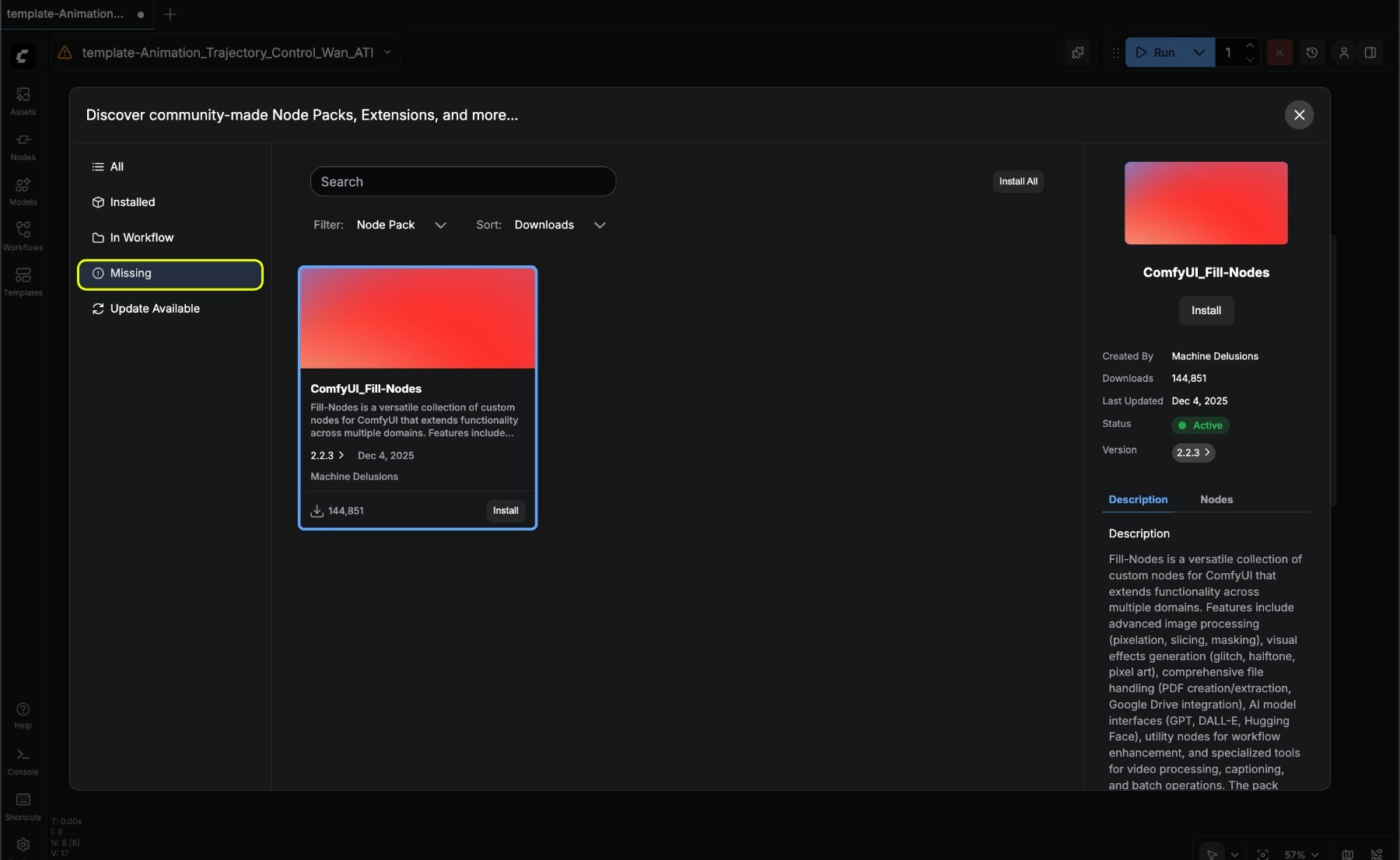 To find missing nodes in a workflow, select the corresponding node, then click the **Missing** button in the preview panel to find missing nodes
### Uninstall nodes
To find missing nodes in a workflow, select the corresponding node, then click the **Missing** button in the preview panel to find missing nodes
### Uninstall nodes
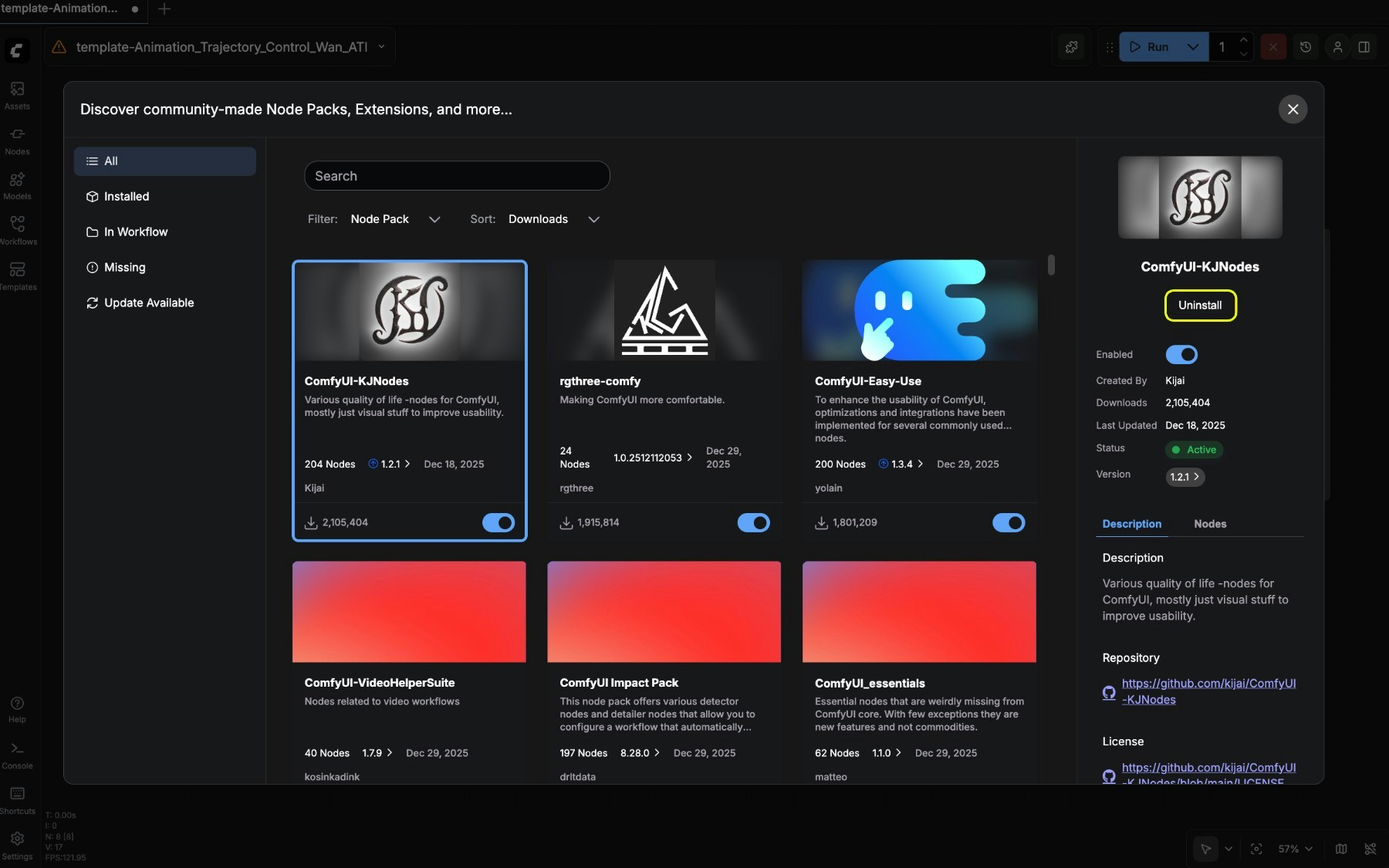 To uninstall an installed node, select the corresponding node, then click the **Uninstall** button in the preview panel to uninstall
## Common questions
1. Why can't I find the node I need?
The new Manager only supports installing nodes from the [registry](/registry/overview). If your node is not registered in the registry, please register it in the Manager first.
2. Why can't I find the option to install via git?
For security and stability of the ComfyUI user system, the new UI does not support installing nodes via git. Please refer to [Manually install custom nodes](/installation/install_custom_node) to learn how to manually install custom nodes.
To uninstall an installed node, select the corresponding node, then click the **Uninstall** button in the preview panel to uninstall
## Common questions
1. Why can't I find the node I need?
The new Manager only supports installing nodes from the [registry](/registry/overview). If your node is not registered in the registry, please register it in the Manager first.
2. Why can't I find the option to install via git?
For security and stability of the ComfyUI user system, the new UI does not support installing nodes via git. Please refer to [Manually install custom nodes](/installation/install_custom_node) to learn how to manually install custom nodes.